After an upgrade to Business Central 26.11, 27.2, 28.0 or later, calls from LS Central on-premises or hybrid installations to a server with a private or loopback address can fail with an AntiSSRF error. This article explains the cause and how to fix it.
AntiSSRF error when calling an internal server
A call from Business Central to a server fails after an upgrade. Examples:
- A scheduler job on the POS Master or Head Office fails when it calls a local web service.
- Test Connection on a Distribution Location card when testing connection to Data Director fails, even though the endpoint opens fine in a browser or PowerShell.
- Test Connection to Web KDS Service on Kitchen Service Configuration card fails when calling a local Web KDS Service.
You see one or more of the following:
- In Business Central: There was an error while executing the HTTP request, the connecting endpoint violates security requirements. Make sure you are connecting to a valid endpoint. The error may also read Http Error (0) to [POST: http://localhost/...].
- In Event Viewer (Windows Logs > Application):
- System.Security.SecurityException with Microsoft.Dynamics.Nav.Core.Http.AntiSSRFHandler.SendAsync in the stack trace.
- Some builds also log SSRF violation detected: non routable network address.
Explanation
Microsoft added Server-Side Request Forgery (SSRF) protection to outbound AL HttpClient calls. By default, Business Central now blocks requests to loopback and private addresses: 127.0.0.0/8, ::1, 10.0.0.0/8, 172.16.0.0/12 and 192.168.0.0/16.
On-premises, two Business Central Server settings control it:
| Setting | Purpose | Default |
| NavHttpClientAntiSSRFEnabled | Turns the validation on (True) or off (False). | True |
| NavHttpClientAntiSSRFAllowedAddresses | JSON array of internal IP addresses that are allowed even when validation is on, for example ["10.0.0.1", "192.168.1.100"]. | Empty |
How to fix it
Before you start
- Identify the IP address the failing call connects to. Only IP addresses can be allowlisted, so use the resolved IP address if the URL has a host name.
- Check that your platform build is at least 26.0.46773 (26.11), 27.0.42799 (27.2) or 28.0.47117.0 (28.0). Older builds don't recognize the settings, so update the platform first. On some 27.x builds they were still not recognized until the upgrade to version 28.
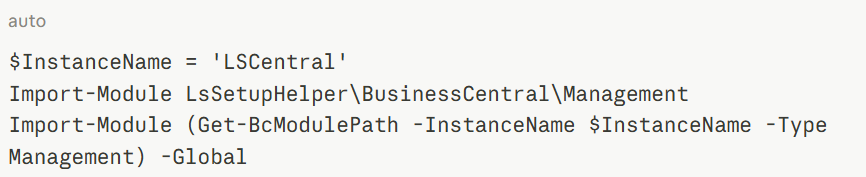
- Open PowerShell as administrator and load the Business Central management module for your instance. $InstanceName is the name of the Update Service instance, for example LS Central:
Option 1 - Allowlist specific addresses (recommended)
This keeps the protection on and permits only the addresses you list.
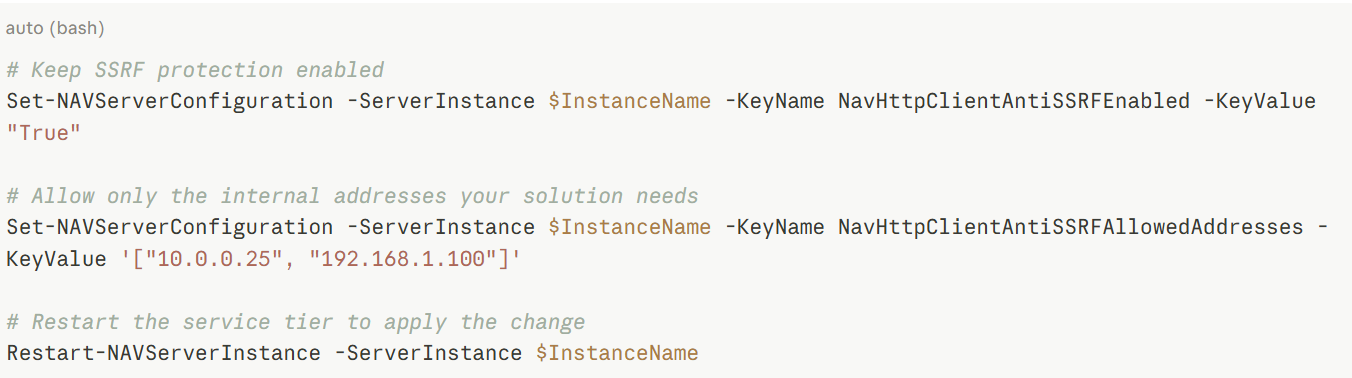
Replace the example addresses '["10.0.0.25", "192.168.1.100"]' with your own.
Note: Settings are per server instance. Repeat the change on each instance that makes these calls, for example the POS Master and the Head Office.
Option 2 - Disable the protection (temporary workaround)
Use this only if your build has no NavHttpClientAntiSSRFAllowedAddresses setting. It removes the protection for all outbound HttpClient calls from the instance, and Microsoft discourages it.

After you update the platform, switch to Option 1 and set NavHttpClientAntiSSRFEnabled back to True.
Alternative - Edit CustomSettings.config
We recommend PowerShell, because a typo in the file can stop the instance from starting. If you must edit the file:
- Back up CustomSettings.config for the instance. For instances installed by Update Service, it is in the instance folder, for example C:\Program Files (x86)\LS Retail\Update Service\Instances\<InstanceName>\Instances\<InstanceName>\. For a standalone installation, it is in the Service folder of the installation.
- Open the file in an editor running as administrator.
- Add or update these keys in <appSettings>:

- Save the file and restart the Business Central Server instance.
Note: After you update an instance through Update Service, check that the two settings are still in place.
Verify the fix
- Rerun the failing action, such as the scheduler job or the connection test.
- If it still fails, open Event Viewer > Windows Logs > Application and look for errors from the source MicrosoftDynamicsNavServer$<InstanceName>.
- Confirm that the address in the error matches an entry in the allowlist.
See also
Anti-SSRF validation for AL HttpClient (Microsoft Learn)
Configure Business Central Server (Microsoft Learn)